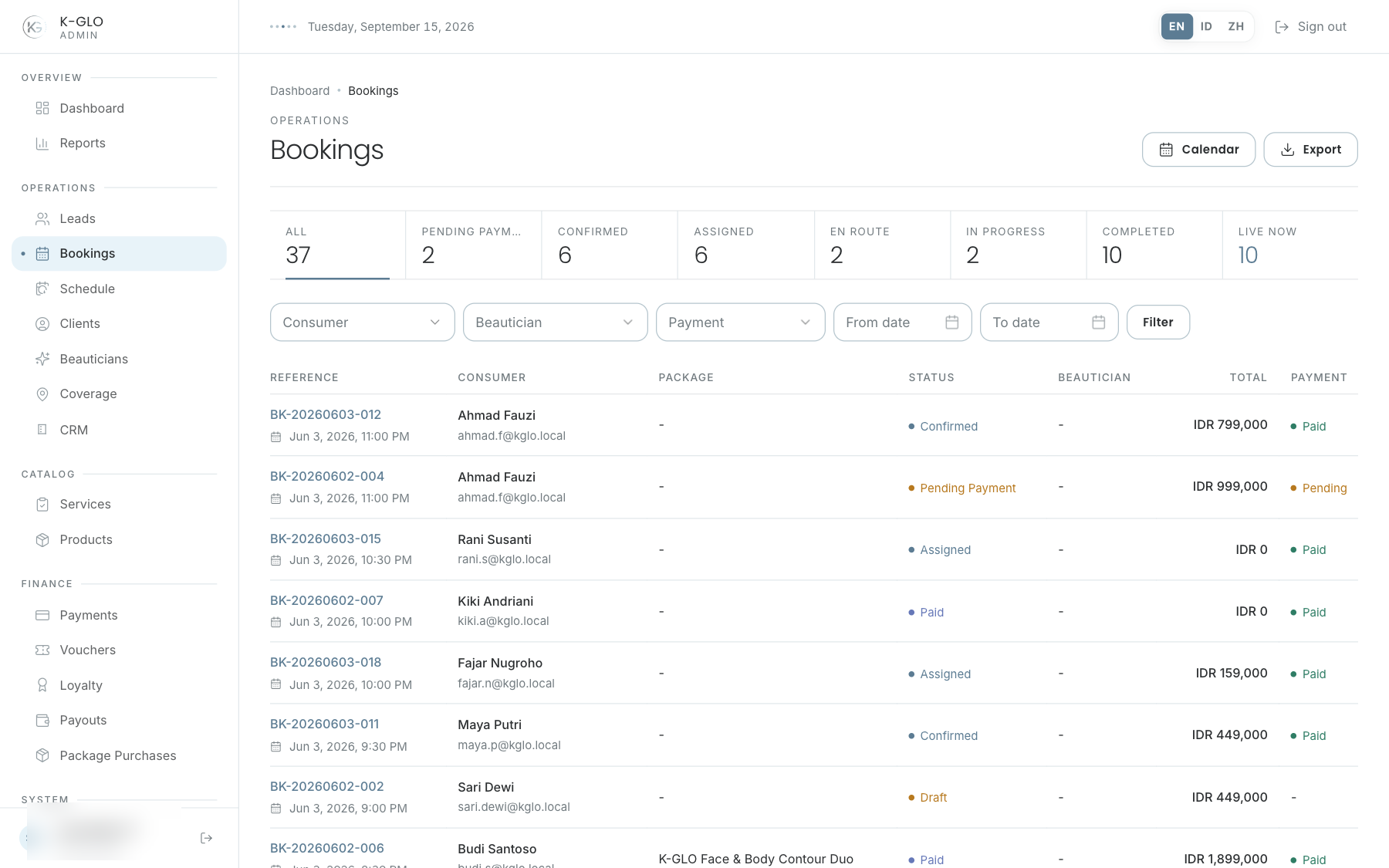
List and filters
Filters are available for status, customer, beautician, payment status, and start/end dates. Apply selections with Filter; status figures are quick-filter links. CSV exports use the applied filters, and the calendar is available from the page header.
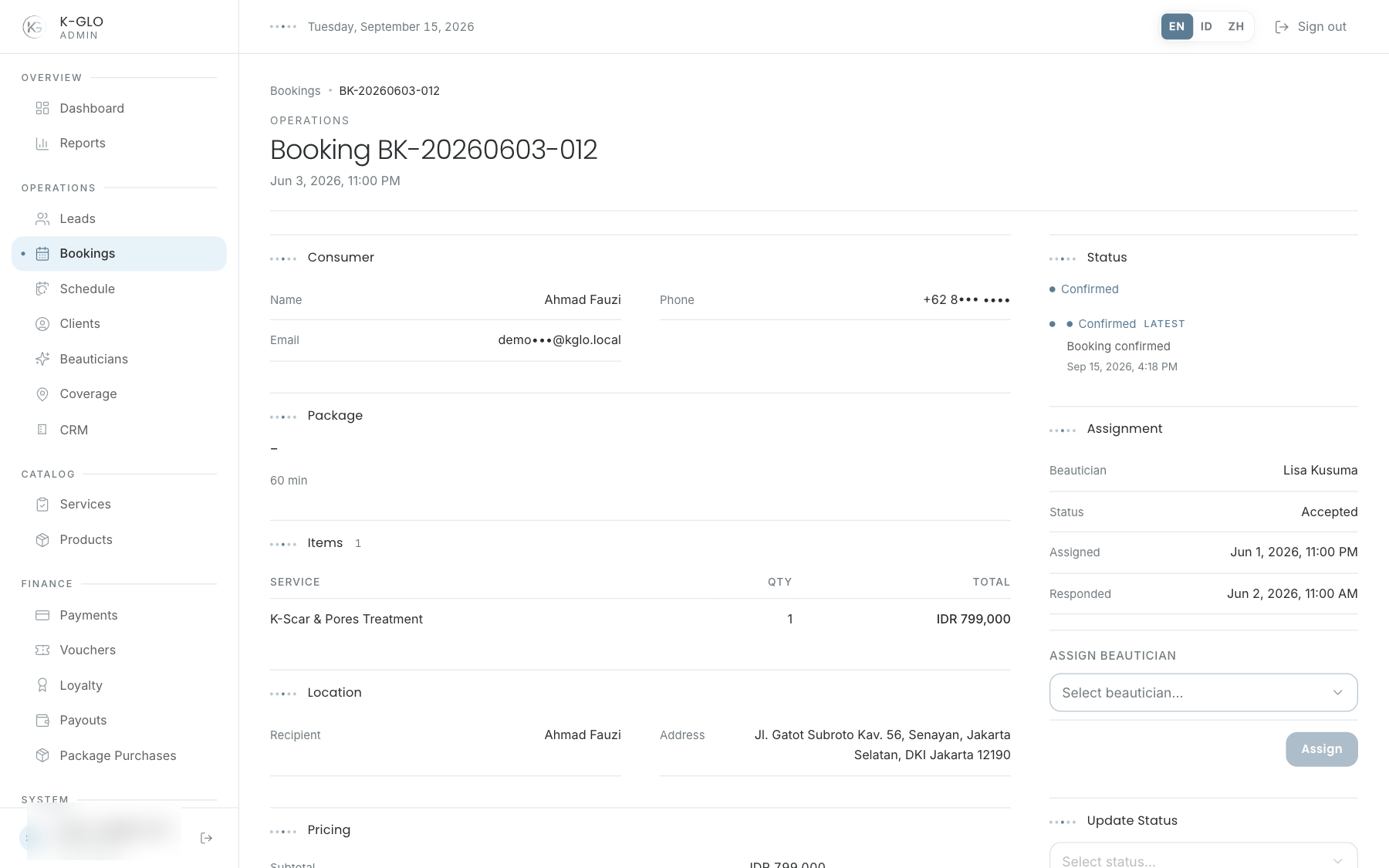
Read the inspector
The main column contains the customer, package, service items, location, price, payment, skin assessment, and cancellation notes when present. The right rail contains status, pipeline, event history, assignment, transitions, and cancellation.
Create an in-salon treatment booking
- Open Bookings and select New salon booking.
- Select the customer, salon, treatment time, and an optional preferred beautician.
- Select one or more treatments and set their quantities.
- Review the estimated duration and total, then select Create salon booking.
A treatment appears only when its service setting is Salon only or Home & salon under Services. The booking starts in Pending Payment with a non-expiring EDC terminal payment.
Submit an EDC payment
After the EDC terminal approves the card payment, open the booking details and enter the receipt or terminal approval reference in Submit EDC payment. The system stores that reference as payment evidence, marks the payment as paid, and confirms the booking. Paid cannot be selected through the generic status control without EDC evidence.
public/screenshots/en/salon-booking-create.pngpublic/screenshots/en/salon-edc-payment.pngAssign a beautician
- Check the location, services, schedule, and status.
- Select a beautician in the assignment form.
- Save and verify that the beautician name changes in the detail view.
Change the status
- Read the current status and event history.
- Select an available transition.
- Read the confirmation dialog.
- Confirm only when it matches the situation in the field.
For an Assigned booking whose assignment has been accepted, an admin can select Beautician En Route. The system records the departure time and calculates a one-time ETA from the beautician’s service-area center to the booking address. This action does not enable live location tracking.
A destructive or terminal status may lock later transitions.
Cancellation
Use the cancellation form in the rail and enter a reason of at least two characters. A confirmation dialog appears; dismissing it leaves the booking active. After confirmation, the reason appears in the booking details and history.
Video walkthroughs
English Admin Web recordings from isolated demo data, slowed down so the steps are easier to follow. Secret values are masked. No external payment or provider delivery is performed.
Recorded:
admin creates, settles by EDC receipt, and assigns a salon booking 0:16
Covered steps
- Create a salon booking by selecting a consumer, clinic, schedule, preferred beautician, service, quantity, and notes.
- Verify the booking starts pending payment and Paid is unavailable through the generic status selector.
- Submit an invalid short EDC reference and verify the booking remains unpaid, then submit a valid EDC receipt reference and verify payment is paid and booking is confirmed.
- Assign a beautician and verify the assignment and assigned booking status.
admin updates an assigned booking status through the permitted transition 0:07
Covered steps
- Open an accepted assigned booking, select Beautician En Route, confirm the transition, and verify the updated status.
admin cancels an active booking with a reason 0:07
Covered steps
- Enter a cancellation reason, dismiss the confirmation and verify the booking remains confirmed, then confirm cancellation and verify the cancelled status and retained reason.
admin filters confirmed bookings and exports the filtered booking dataset 0:07
Covered steps
- Open confirmed bookings, verify a seeded booking, and download the filtered CSV export.
admin applies booking consumer, beautician, payment, and date filters from the ledger 0:10
Covered steps
- Select a consumer, beautician, paid payment status, and start/end dates on the ledger; apply the filters and verify the corresponding query parameters.
admin switches calendar views and filters by booking status 0:05
Covered steps
- Switch calendar to Week and Day views and filter calendar bookings by status.
admin navigates schedule periods and preserves status and beautician filters across calendar views 0:11
Covered steps
- Navigate to next period and Today, filter by booking status and beautician, switch between Week/Day/Month while retaining filters, navigate to the previous period, and open a booking from its calendar entry.