Catalog structure
- Categories: group services.
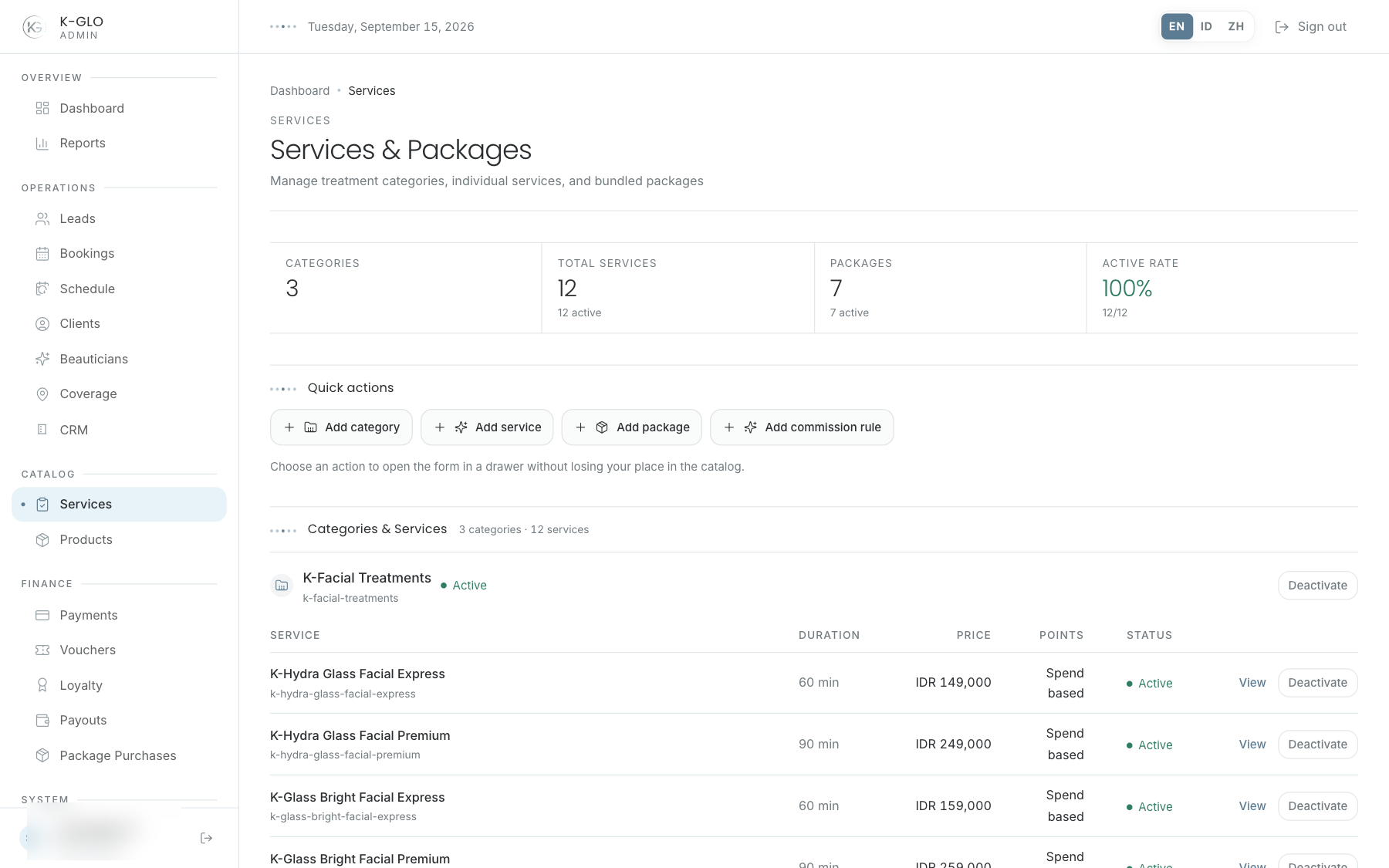
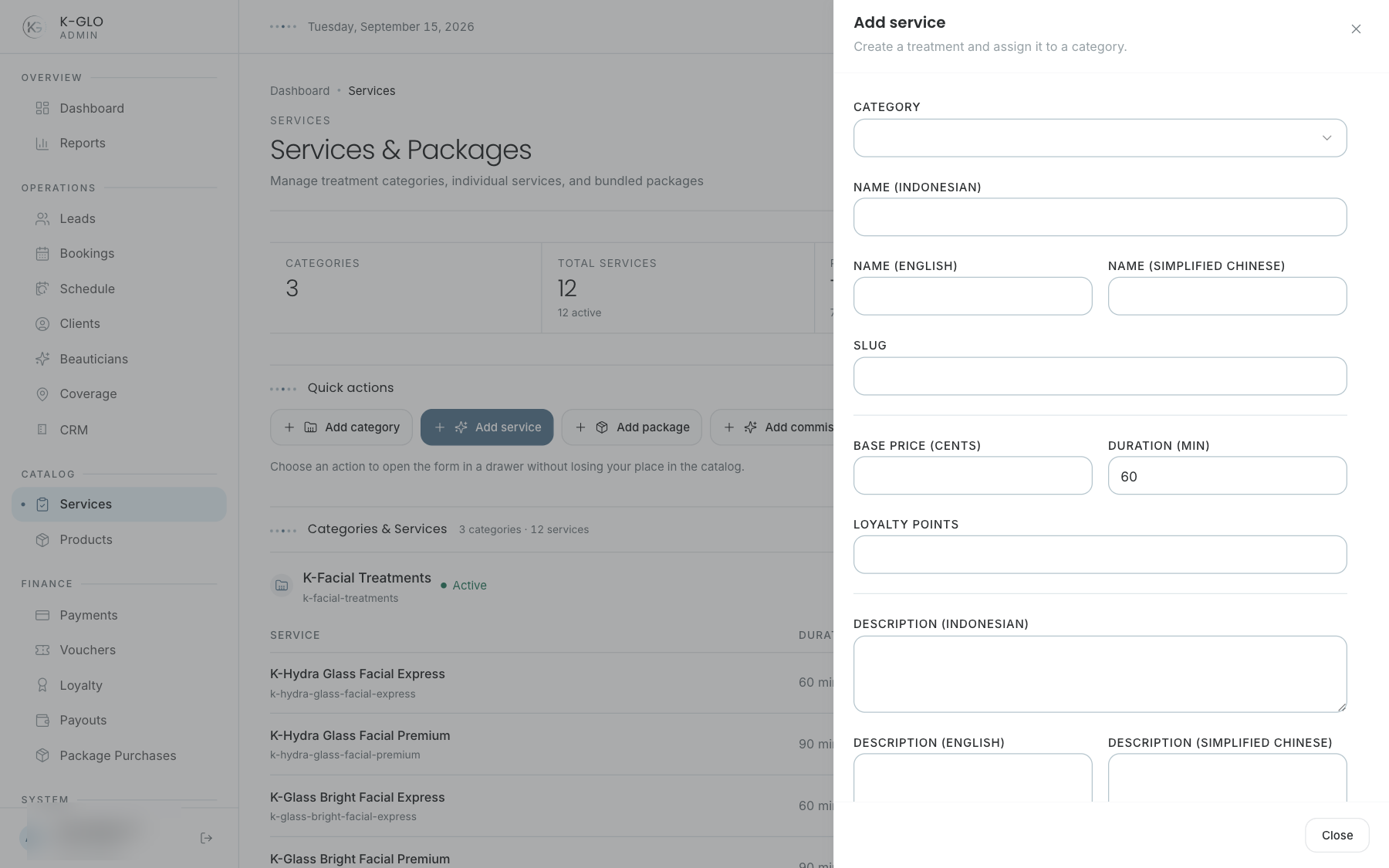
- Services: treatments, duration, price, loyalty points, translations, assets, and active status.
- Packages: bundled service or quota offers.
- Commission rules: commission rules linked to the catalog.
The catalog page displays categories and services, packages, and commission rules. Expand a package to inspect its services and included session quantities; use its inline Edit form to update linked services, quantities, and active status, or the row action to activate/deactivate it.
Create and edit
Use quick-create for a category, service, package, or commission rule; each form opens in a right-side drawer.
- Enter required data, including the local and English name where available.
- For services/packages, check price, duration or quota, and linked services.
- Save, check the notification, and confirm the item appears in its section.
- Edit catalog details and active status in the available form; for packages, the inline editor saves linked services and included quantities, while the row action toggles availability.
- Use the asset editor on a service or package detail/edit page to view and manage catalog media.
Use approved media. Uploads that require an external asset provider depend on its active configuration; do not assume an upload succeeded until the asset appears.
Commission rules
Create a rule for the correct catalog scope and commission value, then check it in the list. Existing rules can be edited inline from their card/list.
Video walkthroughs
English Admin Web recordings from isolated demo data, slowed down so the steps are easier to follow. Secret values are masked. No external payment or provider delivery is performed.
Recorded:
admin creates a catalog category, treatment, add-on, and package with linked service quantities 0:27
Covered steps
- Create and edit a service category with the English translation field.
- Create a treatment and an add-on service.
- Create a package linked to the treatment with a two-session quantity.
- Expand the package, edit linked session quantities inline, save, and deactivate/reactivate the package while verifying its quantities and status.
- Edit and deactivate the treatment while updating its English name.
- Create and edit a percentage commission rule, then verify updated values.
admin sees an automatic translation configuration error without losing entered text 0:04
Covered steps
- Select automatic translation with untranslated fields, read the missing-configuration error, and verify source text and stored service remain unchanged.
admin catalog photo uploads fail closed without changing service or package assets 0:12
Covered steps
- Select a local brand image and upload it from both service and package asset editors; read the provider error and verify existing assets remain unchanged.
admin removes a local legacy photo and retains a provider-backed photo when deletion fails 0:21
Covered steps
- Remove a disposable legacy photo without a provider ID and verify it disappears; attempt provider-backed deletion with absent credentials and verify the photo and record remain.
Testing boundaries
- Cloudinary upload and deletion success with real provider assets are not exercised. The local legacy-photo deletion uses a synthetic asset without a provider ID; provider-backed mutations demonstrate missing-configuration failures.
- Automatic translation-provider success is not exercised; the journey enters the English translation value directly.