Customer list
- Search by name, email, or phone and choose a lifecycle. Select Filter to apply the values; sort by join date or most recent completed booking. The URL records the active filters.
- Export downloads the roster with its active filters. Open a customer row to review the dossier and follow a related booking link when needed.
| Lifecycle in the page | Operational meaning |
|---|---|
New |
A new customer with limited history. |
Active |
A customer active according to recent activity. |
Potential leaver |
A customer who needs attention or follow-up. |
Leaver |
Long inactive; evaluate a re-engagement action. |
Potential leaver and Leaver are follow-up signals, not automatic decisions.
Dossier
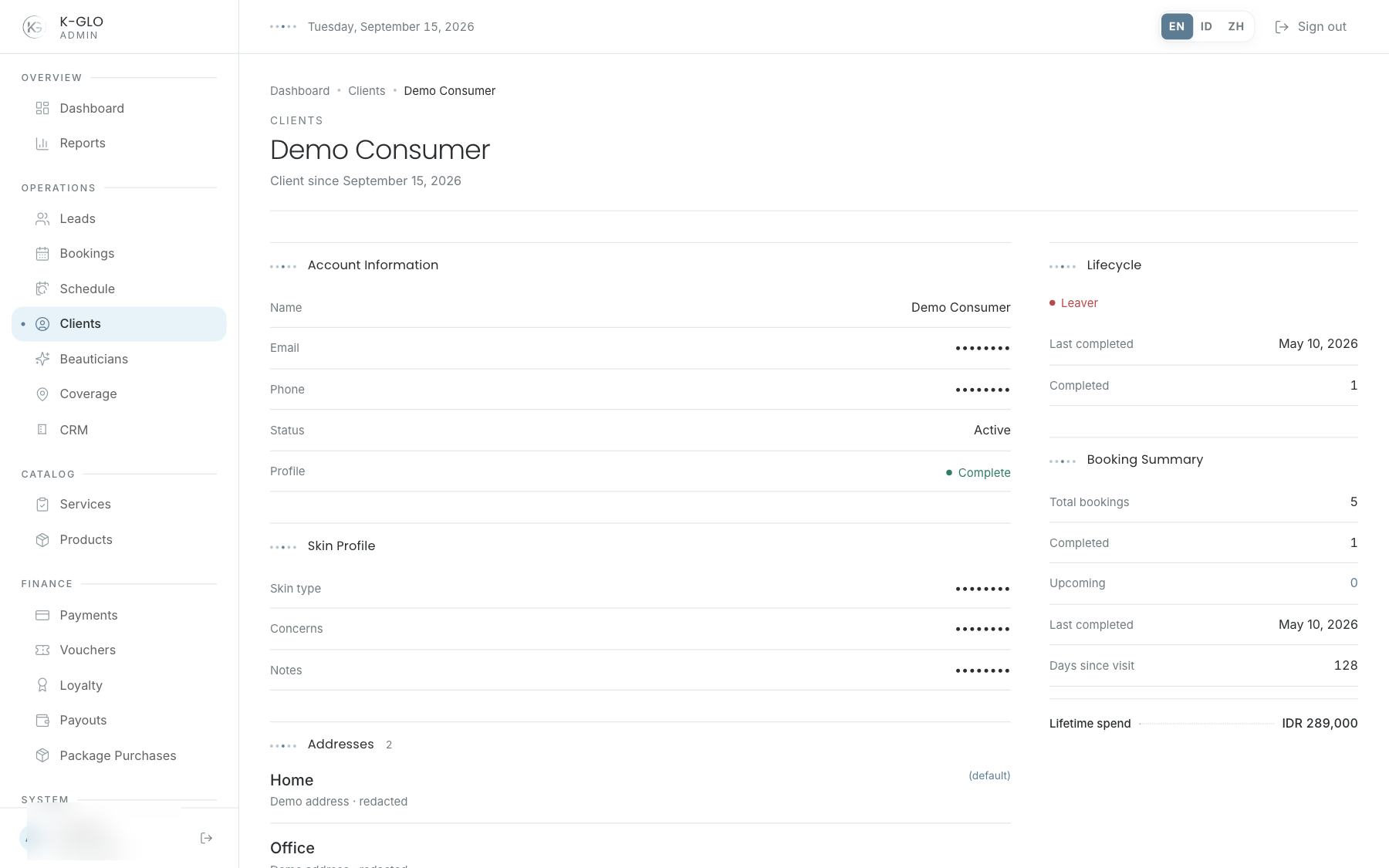
The detail view may include a skin profile, addresses, recent bookings, lifecycle recency, and lifetime spend. Use this information to understand the context before contacting the customer or opening a related booking.
Skin profiles, addresses, and contact details are sensitive data. Never include production data in documentation screenshots.
Video walkthroughs
English Admin Web recordings from isolated demo data, slowed down so the steps are easier to follow. Secret values are masked. No external payment or provider delivery is performed.
Recorded:
admin filters and sorts the client roster, including an empty search result 0:11
Covered steps
- Search for a client by name, filter by lifecycle, choose the most-recently-completed sort, apply filters, and verify the resulting URL and row.
- Search for a missing client and verify that the no-clients empty state appears.
admin reviews a client detail and exports the client roster 0:09
Covered steps
- Open the seeded Demo Consumer dossier from the list and inspect account, skin profile, address, recent booking, lifecycle, and booking summary sections.
- After the related-booking visit, search for Demo Consumer, apply the Active lifecycle filter, then download the filtered CSV and verify filename, demo record, and non-empty rows.