Create and live preview
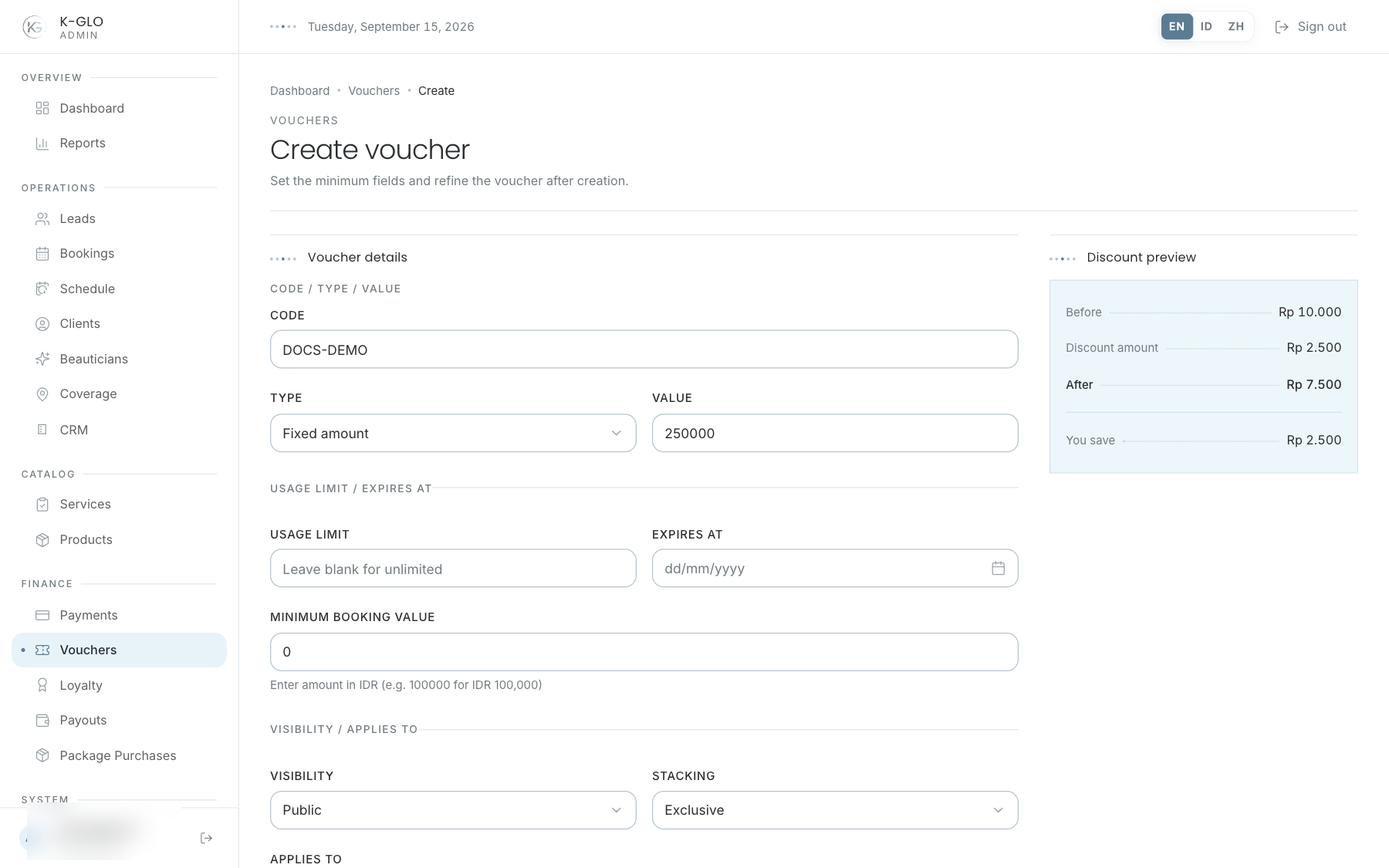
The create form shows the value before discount, discount, and value after discount. Choose a fixed-amount or percentage discount; the percentage cap is optional. Preview uses the selected service/package when applicable, or an example price for all bookings.
Before creating a voucher, check its code, discount type and value, usage limit, expiry date, minimum booking value, visibility, service/package target, active status, and stacking policy. Enter values in the cent units shown by the form.
List, edit, and assignment
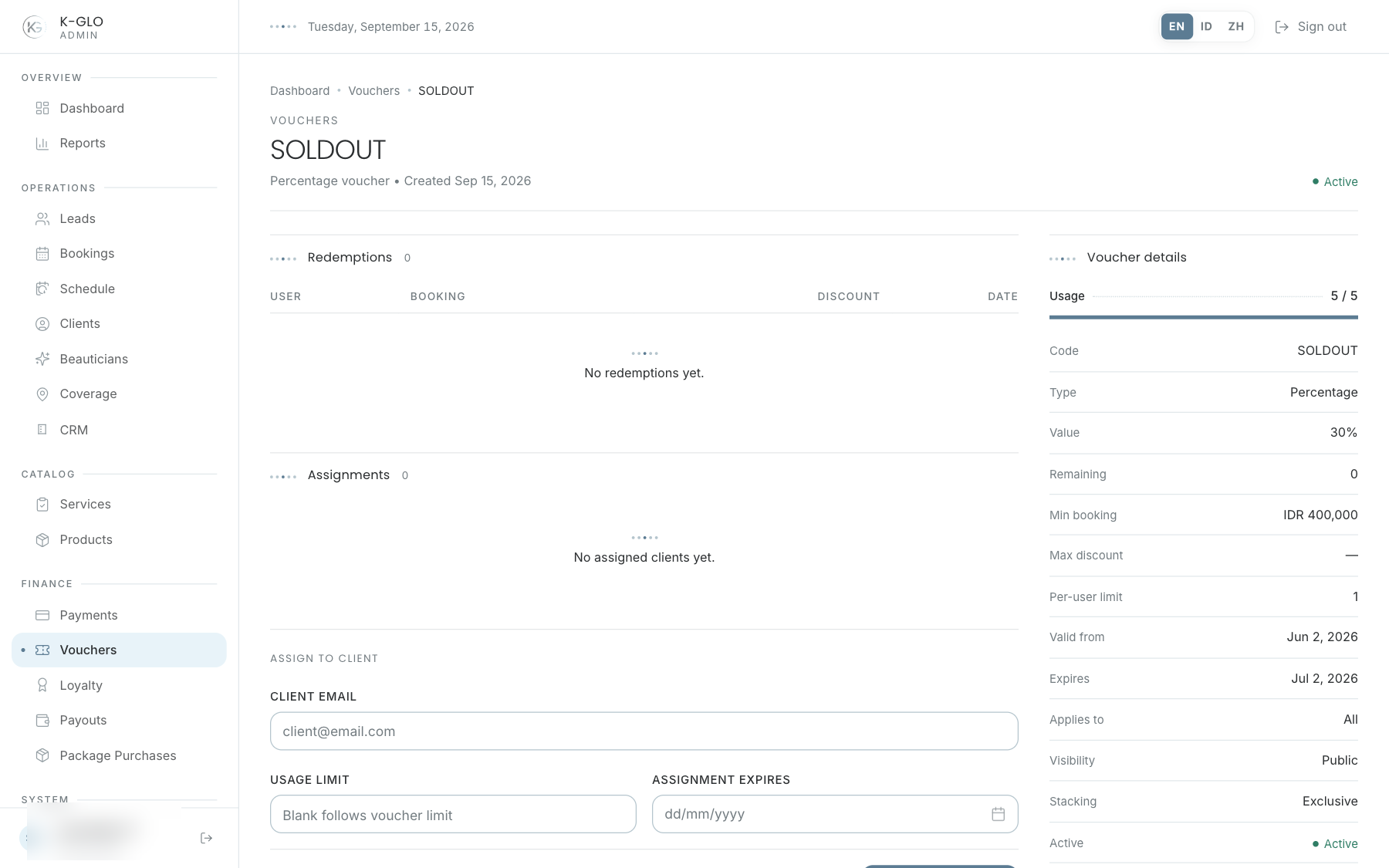
Search vouchers or filter by active status. CSV export retains the applied search/status. From detail, inspect the limits, period, assignments, and redemption ledger; edit rules and save when needed.
- Save voucher-level rules, including the voucher expiry, before assigning it.
- Enter the consumer email, assignment usage limit, and assignment expiry.
- Save and verify the recipient and assignment terms on the detail page.
- Check the redemption ledger after an actual use is recorded; an assignment is not a redemption.
Video walkthroughs
English Admin Web recordings from isolated demo data, slowed down so the steps are easier to follow. Secret values are masked. No external payment or provider delivery is performed.
Recorded:
admin creates a voucher and assigns it to a consumer account 0:13
Covered steps
- Inspect fixed-amount live preview, switch to percentage, set a cap, and inspect the percentage/cap preview.
- Create a fixed-amount voucher with a usage limit.
- Set a voucher expiry; assign it to the demo consumer with a separate usage limit and expiry date.
- Edit the voucher code and verify code and expiry persisted.
- Search the updated voucher, filter it by active status, and click the CSV export retaining both filters.
admin exports each operational finance list with its CSV schema 0:06
Covered steps
- Open the voucher list and click its visible CSV export control.
- Verify the export response schema and that it contains data.
Testing boundaries
- A populated redemption ledger is not manufactured; the journey verifies the current ledger view while assignment and voucher persistence are checked.