Initial enrollment
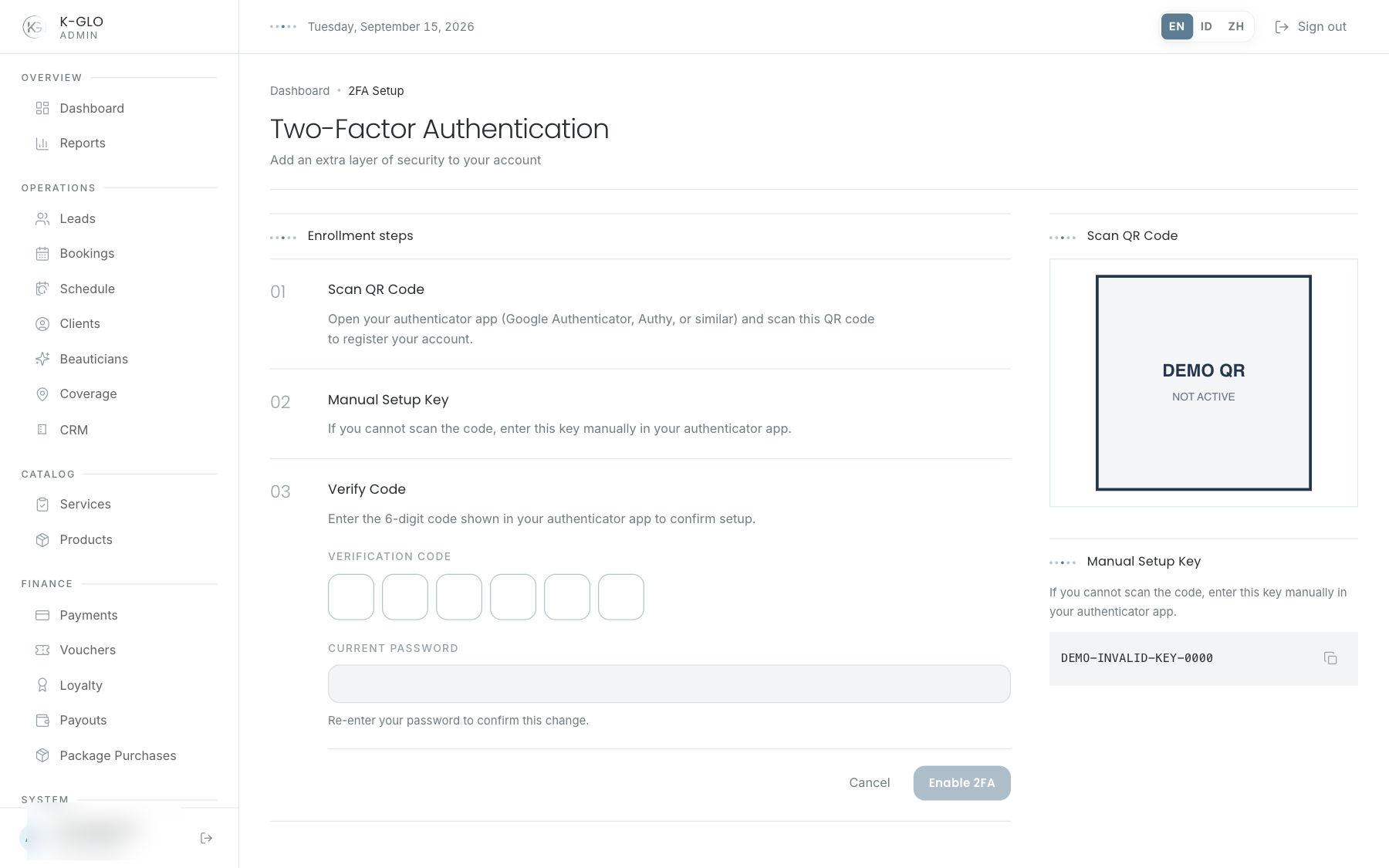
- Open 2FA Setup. Scan its QR code in an authenticator app, or copy the manual key and enter it there.
- Enter a current TOTP code and confirm your password, then select Enable 2FA.
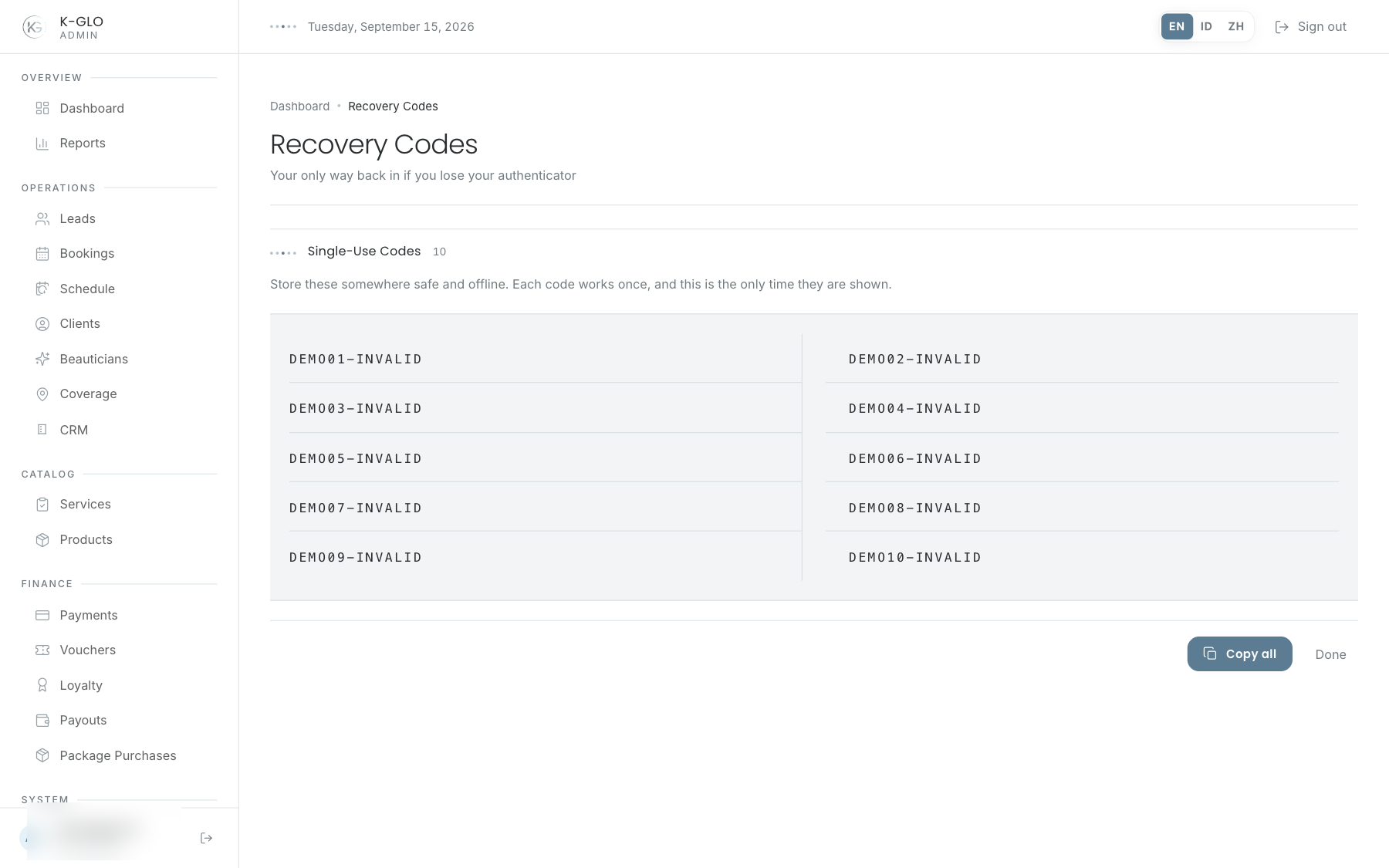
- Store the ten recovery codes shown after enrollment. Copy all copies them to the clipboard; leaving the page hides the displayed codes.
Recovery codes
Recovery codes appear once after they are created or regenerated. Each code works only once. Store them before leaving the page, and never send them through chat, unencrypted email, or a support ticket.
While 2FA is enabled
From 2FA Setup, enter your password to regenerate recovery codes. The new set replaces the old set. To turn 2FA off, enter your password and select Disable 2FA.
Login verification
Use a TOTP for normal login. Use a recovery code only when the authenticator is unavailable. After using a recovery code, review the 2FA method and regenerate codes when needed.
Lost access
Do not create a shared account or borrow another user’s session. Follow the identity recovery procedure and escalate internally to an authorized administrator.
QR codes, manual keys, and recovery codes are secrets. Use dummy values in knowledgebase screenshots.
Video walkthroughs
English Admin Web recordings from isolated demo data, slowed down so the steps are easier to follow. Secret values are masked. No external payment or provider delivery is performed.
Recorded:
temporary admin enrolls, regenerates recovery codes, verifies TOTP, and disables 2FA 0:13
Covered steps
- Copy the manual setup key, complete enrollment using a generated TOTP and password, and verify ten unique recovery codes are displayed.
- Copy all recovery codes, regenerate them, verify the old set is invalidated, sign out and verify login by TOTP, then disable 2FA.
temporary admin recovery code is single-use and authenticator fallback completes 2FA 0:12
Covered steps
- Enroll a temporary admin, log in once with a recovery code, and verify reuse is rejected.
- Switch to authenticator verification, complete login with TOTP, and disable 2FA.
Testing boundaries
- Tests never publish the generated QR, manual key, OTP, or recovery-code text; the recording privacy mask obscures them while assertions read the underlying values.
- The lost-account identity recovery and internal escalation procedure is outside the admin UI.