List and detail
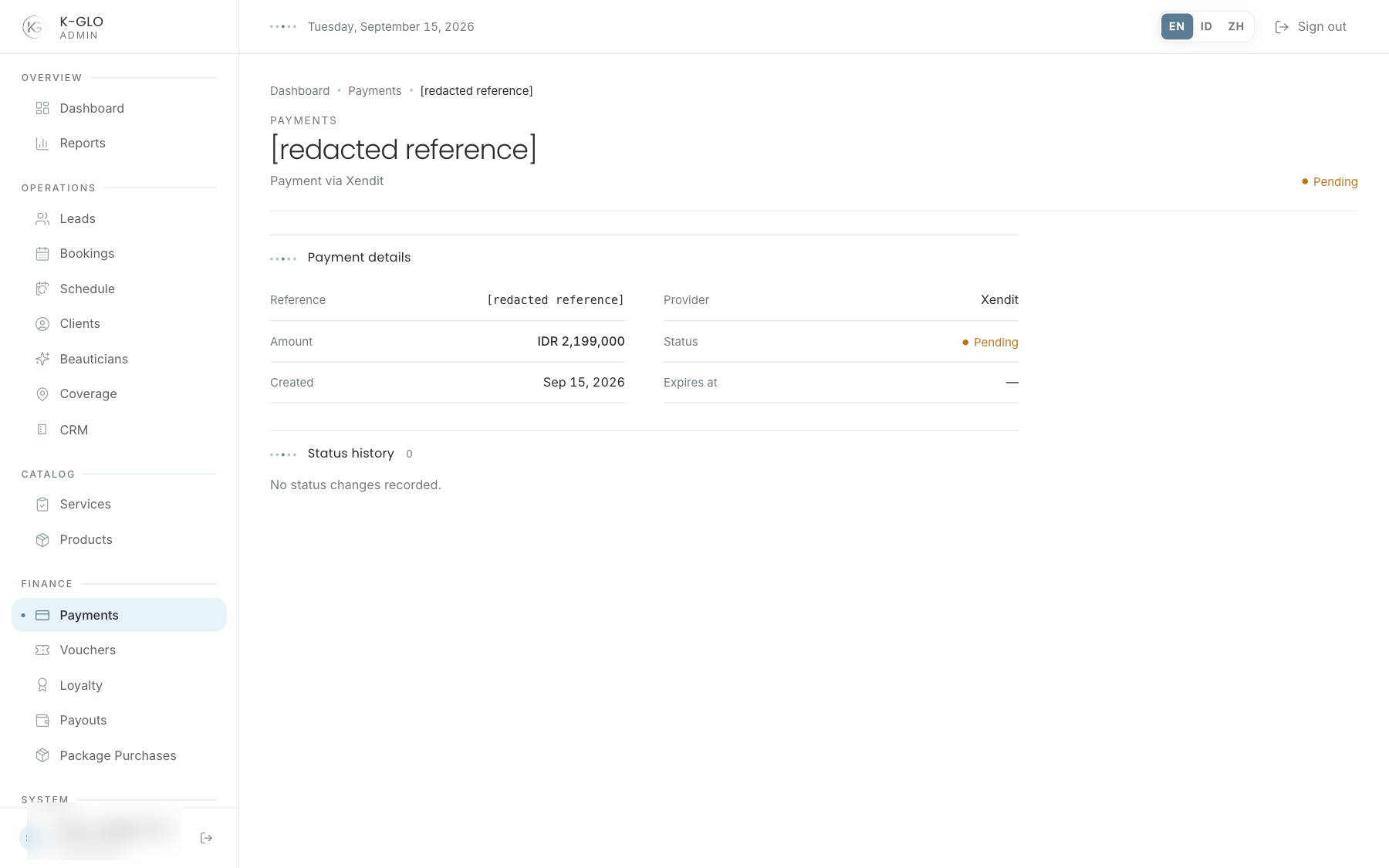
The list provides payment counts and a status filter. Apply a status, then open a row to review transaction facts, event history, and recorded refunds. CSV export retains the active status.
Refund
The refund form is available only to super_admin. Enter an amount and reason. The settlement-recording option reveals settlement evidence fields; if it is unchecked, submitting only creates a pending refund request and does not claim that money was returned.
- Match the transaction, customer, and amount.
- Read event history and any existing refunds.
- Enter settlement evidence only after settlement actually occurred; check the amount, method, reference, and mismatch warning.
- If evidence is not available yet, leave settlement recording unchecked and submit a request.
Submitting settlement evidence records the admin-confirmed movement in the local refund ledger; it does not execute a bank transfer or provider reversal.
Changing or cancelling evidence input before submission does not create a refund. Do not treat a pending request as a provider transfer or settlement.
Video walkthroughs
English Admin Web recordings from isolated demo data, slowed down so the steps are easier to follow. Secret values are masked. No external payment or provider delivery is performed.
Recorded:
admin reserves a refund request without claiming an unperformed provider transfer 0:10
Covered steps
- Open a confirmed payment detail, inspect status history, and review the refund form.
- Toggle settlement evidence on, observe the amount-mismatch warning, then cancel that evidence entry without submitting it.
- Submit a refund request without settlement evidence and verify it remains pending with no settled amount.
admin filters payments by status and exports the filtered list 0:07
Covered steps
- Filter payments to paid status.
- Verify the fixture payment appears and the export link retains the status filter.
- Click the filtered CSV export, then verify its response schema/data and payment reference.
admin exports each operational finance list with its CSV schema 0:06
Covered steps
- Open the payments list and click its visible CSV export control.
- Verify the export response schema and that it contains data.
admin records a refund settlement from synthetic local evidence 0:07
Covered steps
- Select settlement recording, enter a synthetic reference and manual-transfer method, submit matching settlement evidence, and verify the processed refund, amount, method, and reviewing administrator in the local ledger.
Testing boundaries
- Settlement evidence in this walkthrough is synthetic and records a local administrative assertion only. No payment-provider refund or actual money movement is invoked.